Reliable server infrastructure is essential for organizations that depend on uninterrupted access to applications, data storage, and digital services. When server problems occur, they can slow down operations, interrupt workflows, and create unnecessary downtime. For business owners and IT decision-makers, understanding how to troubleshoot server issues efficiently is critical for maintaining operational stability and protecting productivity.
ASRock servers are designed with enterprise-level engineering and monitoring capabilities that help administrators manage demanding workloads. However, even high-performance server hardware may occasionally encounter configuration errors, hardware connection problems, or firmware compatibility issues. A structured troubleshooting process helps administrators diagnose problems quickly and restore system stability without unnecessary hardware replacement.
Understanding Diagnostic Tools and System Monitoring
Effective troubleshooting begins with the right diagnostic tools. ASRock Servers include built-in monitoring features that help administrators identify system problems during startup and operation. Diagnostic indicators such as Dr. Debug POST codes and remote management interfaces allow technicians to detect hardware issues early and take corrective action.
These diagnostic tools provide insight into system health, including memory initialization, processor detection, and hardware configuration. By reviewing these indicators and following a systematic troubleshooting process, administrators can isolate problems more efficiently and maintain consistent server performance.
1. Checking Power and Startup Failures
A server that fails to power on or complete the Power-On Self-Test (POST) can interrupt critical operations. Power-related problems often originate from loose connections, faulty power supplies, or electrical distribution issues.
Troubleshooting begins by verifying that the power cable, wall outlet, or power distribution unit is functioning correctly. Administrators should also inspect redundant power supplies to ensure both modules operate properly. Reseating internal components such as memory modules and processors can also help restore system startup functionality.
See also: How Continuous Learning Supports Tech Careers
2. Using Dr. Debug Codes to Identify Hardware Errors
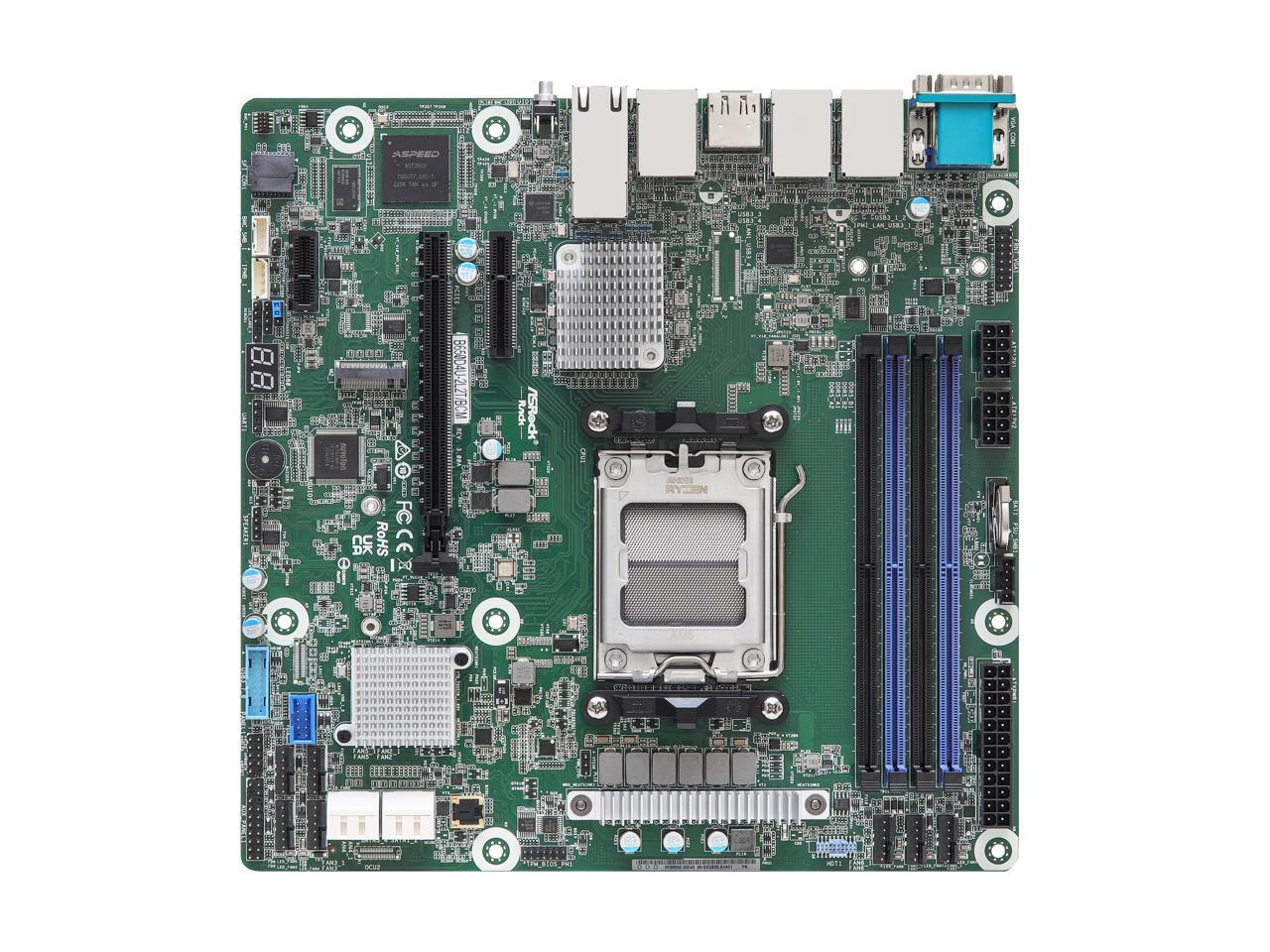
ASRock server motherboards include a Dr. Debug display that shows two-digit codes during the boot process. These codes indicate which stage of hardware initialization the system has reached and whether an error has occurred.
For example, specific codes may point to memory initialization problems, processor configuration issues, or PCIe device errors. By comparing the displayed code with the system documentation, administrators can determine which component requires further inspection.
3. Resolving Memory and Processor Initialization Issues
Memory configuration errors are among the most common reasons servers fail to boot. Incorrectly installed DIMM modules or incompatible memory configurations can prevent the system from completing the POST sequence.
Administrators should verify that memory modules are installed in the recommended slots and test each DIMM individually if necessary. Clearing the CMOS to reset BIOS settings may resolve initialization issues. Updating the BIOS can also ensure compatibility between the processor and motherboard firmware.
4. Addressing Graphics and Display Output Problems
Some server configurations rely on dedicated graphics cards or integrated display controllers. When the system fails to detect a graphics device, administrators may encounter VGA-related POST error codes while working with ASRock Server Systems.
Reseating the graphics card and resetting BIOS settings are common troubleshooting steps. If the motherboard includes integrated graphics, connecting through the onboard display interface can help determine whether the GPU is causing the issue.
5. Identifying USB and Peripheral Conflicts
Peripheral devices connected through USB ports can sometimes interfere with the server boot process. Faulty or incompatible devices may cause the system to pause during initialization.
To diagnose this issue, administrators should disconnect all external USB devices and restart the server with only essential hardware connected. If the system boots successfully, reconnecting devices individually will help identify the problematic peripheral.
6. Troubleshooting Storage Detection and RAID Problems
Storage issues can prevent the operating system from loading or cause drives to disappear from the system configuration. Loose cables, failing drives, or misconfigured RAID arrays are common causes of these problems.
Many server platforms include monitoring tools that allow administrators to check drive status, view system logs, and confirm storage connectivity. Verifying SATA or NVMe connections and reviewing RAID configurations often resolves storage detection problems.
7. Updating BIOS and Firmware for Compatibility
Outdated firmware can create compatibility problems between hardware components. BIOS and management firmware updates often resolve issues involving processors, memory modules, or expansion devices.
ASRock servers support firmware updates through built-in flash utilities or remote management interfaces. Keeping firmware current ensures that the server remains compatible with modern hardware technologies and maintains stable system performance.
8. Leveraging IPMI for Remote Diagnostics
IPMI management allows administrators to monitor server hardware remotely. Through the IPMI interface, technicians can review system logs, monitor temperatures, and check voltage levels without direct physical access to the server.
This capability is particularly valuable in large data centers where servers may be located in remote racks or facilities. Remote diagnostics allow IT teams to respond quickly to system alerts and prevent minor issues from becoming major disruptions.
Building More Resilient Server Infrastructure
Troubleshooting skills are essential for maintaining stable server environments. By checking hardware connections, analyzing diagnostic codes, updating firmware, and reviewing system logs, administrators can resolve many issues before they affect operations.
Large distributors such as CDW and Insight offer extensive server catalogs, but their approach often emphasizes product availability rather than workload-specific configuration.
Cloud Ninjas focuses on aligning server solutions with real infrastructure needs. This approach helps organizations deploy dependable ASRock server environments that support stable performance and long-term reliability.