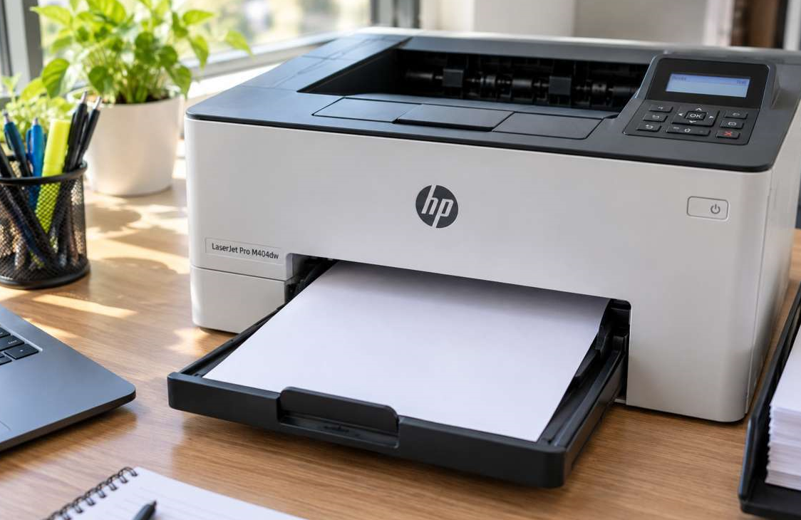
You send an important document to print, the printer whirs to life, and out comes a perfectly blank page. It’s confusing and wasteful, especially when you’ve just changed the cartridge.
The cause is usually small. Often it’s a cartridge problem, and the right HP toner cartridges for your model, installed correctly, solve it. This guide explains why blank pages happen and what you can do about them.
Common Reasons an HP Printer Prints Blank Pages
- The protective tape or seal is still on a new cartridge. This is the most common cause.
- The toner or ink is empty or very low.
- The cartridge isn’t seated properly.
- A poor-quality or mismatched cartridge.
- A clogged print head (on inkjet models).
- A software or driver problem. The file may be sending empty data.
- A faulty internal part, such as a transfer roller or laser unit.
Start with the easy causes first, since they solve most cases.
7 Fixes for Blank Pages
Fix 1: Remove the Protective Tape
New cartridges come with a plastic strip, tab or seal that must be pulled out before use. Open the cover, take out the cartridge and check for any tape, orange tabs or plastic covers. Remove them, reinstall the cartridge and print a test page.
Fix 2: Check the Toner or Ink Level
A very low or empty cartridge can print nothing at all. Print a status or configuration report from the printer’s menu, or check the level in the HP Smart app. If it’s empty, replace it.
Fix 3: Shake the Cartridge Gently (Laser Printers)
Remove the toner cartridge and rock it gently from side to side. This spreads the toner evenly and can bring back faint prints temporarily. Do it over a sheet of paper in case of spills.
Fix 4: Reinstall the Cartridge Properly
Switch off the printer, open the cover and remove the cartridge. Wipe the metal contacts gently with a dry, lint-free cloth, then slide the cartridge back in until it clicks. Close the cover fully and restart the printer.
Fix 5: Run a Cleaning Cycle and Print a Test Page
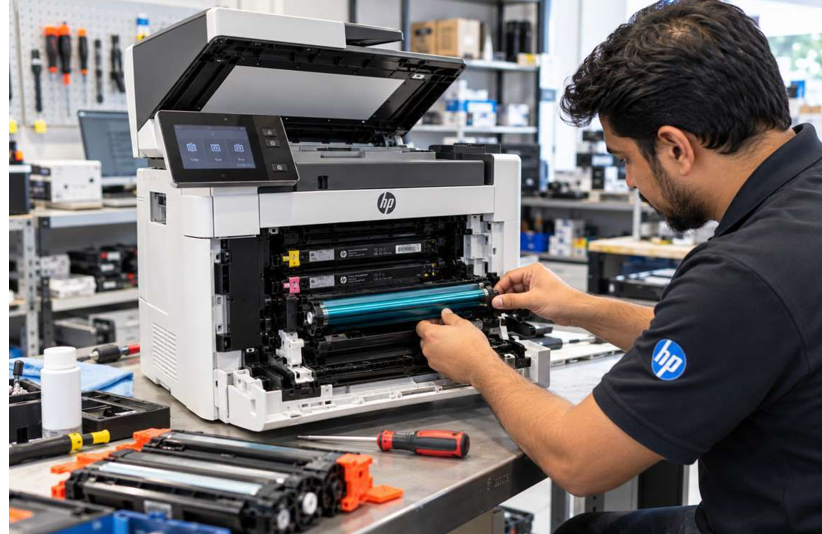
Open your printer’s settings and run the built-in cleaning or maintenance function. Then print a test page directly from the printer, not from your computer. If the test page prints normally, the issue is in your software. If it’s still blank, the cause may be inside the machine, such as a worn roller or a faulty laser unit. This is where a professional HP printer repair in Dubai service can test the parts and fix the fault without you replacing the whole printer.
Fix 6: Check the Document and Settings
Open the file on your screen and make sure it actually contains text or images. Try printing a different document. Also check that you chose the correct paper size and printer in the print dialog, since the wrong settings can produce empty pages.
Fix 7: Update or Reinstall the Driver
A damaged or old driver can send incorrect data to the printer. Remove your HP printer from the computer, download the latest driver for your exact model from HP’s official support website, and install it again. The free HP Smart app can also run diagnostics for you.
Simple Habits to Avoid Blank Pages
- Always remove all tape and covers from new cartridges
- Choose cartridges that match your exact printer model
- Replace cartridges before they run completely empty
- Store spare cartridges in their packaging, in a cool, dry place
- Keep the printer dust-free
- Print a few pages weekly so the printer doesn’t sit idle
When Should You Get Extra Help?
If you’ve tried every fix and the pages are still blank, it’s time to stop troubleshooting. Consider getting help if:
- Test pages from the printer itself are blank
- Blank pages continue with a brand-new, correct cartridge
- The printer makes grinding or clicking noises
- You see a burning smell or overheating
- Error messages return after every restart
Opening a printer without training can damage delicate parts and make a small repair much more expensive, so leave internal faults to a technician.
Final Thoughts
A printer printing blank pages looks serious, but the cause is usually simple: leftover tape, an empty cartridge, a loose fit or a driver glitch. Work through the fixes in order, use the right cartridge for your model, and keep your printer clean. If the pages stay blank, get it checked and get back to printing.